
Ligament 2FA Installation and Administration Guide
Official technical step-by-step administrator guide for deploying the Ligament Core engine in Docker, integrating with Active Directory/FreeIPA directories, configuring multi-factor authentication, and silently rolling out client agents via GPO.
The Ligament platform functions completely autonomously inside your private infrastructure (100% On-Premise). Master encryption keys, user directories, active sessions, and security audit logs are stored securely in a relational PostgreSQL database. The engine makes zero external requests and is fully ready for air-gapped networks.
Minimum Host Requirements:
• CPU: 1 vCPU / core (x86_64 or ARM64).
• RAM: 1 GB (2 GB recommended for 500+ active users).
• Disk: 10 GB SSD/NVMe for OS, Docker images, and PostgreSQL.
• OS: Debian 12, Ubuntu 22.04/24.04, Rocky Linux 9, Astra Linux SE/CE, RED OS, Alt Linux.
Network Ports Matrix
| Port | Protocol | Service | Purpose |
|---|---|---|---|
80 |
TCP | HTTP | HTTPS redirect and Let's Encrypt ACME HTTP-01 challenge |
8080 |
TCP | Web UI / API | Admin console, User portal, REST API, Web SSO |
443 |
TCP | HTTPS / WSS | Secure client access, branch relays, WebAuthn / Passkeys |
1812 |
UDP | RADIUS Auth | MikroTik, VPN (OpenVPN, WireGuard), Wi-Fi 802.1X authentication |
1813 |
UDP | RADIUS Acct | Accounting of session durations and network traffic |
The platform engine is distributed as an optimized official Docker Hub image aligorov/ligament_2fa. No build tools or compilers are required.
Option A: Quickstart via Official Script (Recommended)
The script checks Docker prerequisites, tests port availability (80/8080 TCP, 1812/1813 UDP), generates a secure PostgreSQL password in .env (chmod 0600), deploys containers, and extracts master recovery credentials.
mkdir -p /opt/ligament && cd /opt/ligament
curl -fsSL https://raw.githubusercontent.com/aligorov/ligament/main/install.sh -o install.sh
chmod +x install.sh && ./install.sh
Option B: Manual Docker Compose Deployment
Create directory /opt/ligament and save docker-compose.yml:
services:
  db:
    image: postgres:16-alpine
    environment:
      POSTGRES_USER: twofa
      POSTGRES_PASSWORD: "${TWOFA_PG_PASSWORD:?Specify TWOFA_PG_PASSWORD in .env}"
      POSTGRES_DB: twofa
    volumes:
      - twofa_pgdata:/var/lib/postgresql/data
    healthcheck:
      test: ["CMD-SHELL", "pg_isready -U twofa -d twofa"]
      interval: 5s
      timeout: 3s
      retries: 20
    restart: unless-stopped

  twofa:
    image: aligorov/ligament_2fa:latest
    hostname: ligament-auth
    depends_on:
      db:
        condition: service_healthy
    environment:
      TWOFA_DB_DSN: "postgres://twofa:${TWOFA_PG_PASSWORD}@db:5432/twofa"
      TRUSTED_PROXIES: "127.0.0.0/8,::1/128,172.16.0.0/12,10.0.0.0/8,192.168.0.0/16"
    ports:
      - "80:8080"
      - "8080:8080"
      - "1812:1812/udp"
      - "1813:1813/udp"
    volumes:
      - /etc/machine-id:/etc/host-machine-id:ro
    restart: unless-stopped

volumes:
  twofa_pgdata:
Generate the .env file and launch the stack:
echo "TWOFA_PG_PASSWORD=$(openssl rand -hex 24)" > .env
chmod 600 .env
docker compose up -dThe admin password is never written to container console logs. On first launch, the system provisions an admin account, stores the initial password in admin_password.txt, and generates 5 single-use emergency recovery codes in admin_recovery_codes.txt.
# Extract generated admin password:
docker cp $(docker compose ps -q twofa):/home/nonroot/admin_password.txt .

# Extract 5 emergency break-glass recovery codes:
docker cp $(docker compose ps -q twofa):/home/nonroot/admin_recovery_codes.txt .

# Display password:
cat admin_password.txtRequired Post-Login Actions:
1. Open http://SERVER_IP:8080 in your browser (username: admin).
2. Store admin_recovery_codes.txt in a corporate vault (KeePass/Vault).
3. Delete the plaintext password file: rm -f admin_password.txt.
4. Change the admin password to a permanent one and link a 2FA factor (TOTP / Telegram).
By default, the free Community edition is active for up to 5 users indefinitely.
To upgrade to a commercial tier or activate a 30-day pilot:
- Navigate to /admin → License in the web console.
- Paste the license key string and click "Save License".
- Keys are cryptographically signed with Ed25519 — validated locally and applied instantly without server restarts or internet connectivity.
Under /admin → Settings → Domain & Templates, configure your public URL in the server.domain parameter (e.g. https://auth.company.corp).
Recommended Topology: The Ligament container runs on internal port 8080, while inbound traffic terminates on your reverse proxy (Nginx, Traefik, HAProxy, Caddy) forwarding X-Forwarded-For and X-Forwarded-Proto: https headers.
User provisioning and domain password verification operate over secure LDAPS. In /admin → Settings → Directory Services (LDAP), configure:
| Parameter | Value | Description |
|---|---|---|
enabled | true | Enable directory sync module |
url | ldaps://dc1.company.corp:636 | Encrypted Domain Controller endpoint |
bind_dn | CN=svc-ligament,OU=Services,DC=company,DC=corp | Service account DN for directory searches |
bind_password | •••••••••••• | Service account password |
base_dn | DC=company,DC=corp | Root DN for user search tree |
user_filter | (&(objectCategory=person)(sAMAccountName={login})) | Username search filter template |
cache_passwords | true | Password caching for Wi-Fi 802.1X PEAP |
In /admin → Settings, enable your preferred verification channels:
- Telegram Bot: Create a bot via
@BotFatherand specify the token intelegram.bot_token. Employees confirm sign-ins via in-chat prompts or Number Matching. - Corporate Email (SMTP): One-time passcode (OTP) delivery routed through your corporate mail server.
- FIDO2 / Passkeys / WebAuthn: Hardware security tokens (YubiKey, Rutoken MFA) and platform biometrics (Windows Hello, Touch ID).
Ligament Core provides a built-in RADIUS server (UDP 1812 / 1813). To connect MikroTik RouterOS gateways, execute in the RouterOS terminal:
/radius add address=192.168.1.10 secret="YourSecretKey" service=login,ppp,wireless timeout=5s
/user aaa set use-radius=yes
/ppp aaa set use-radius=yes accounting=yes
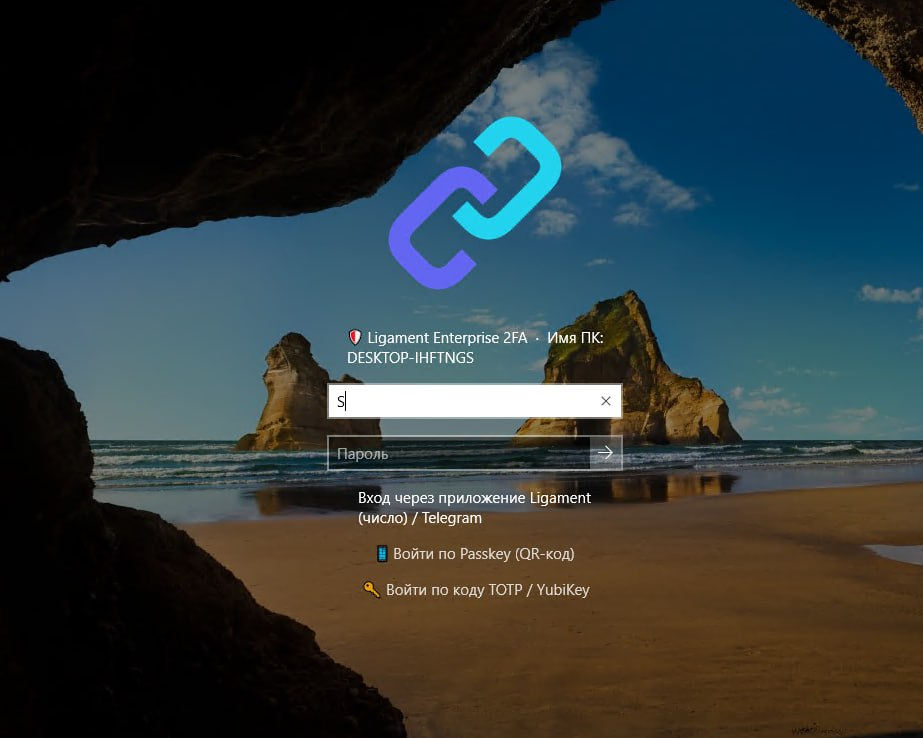
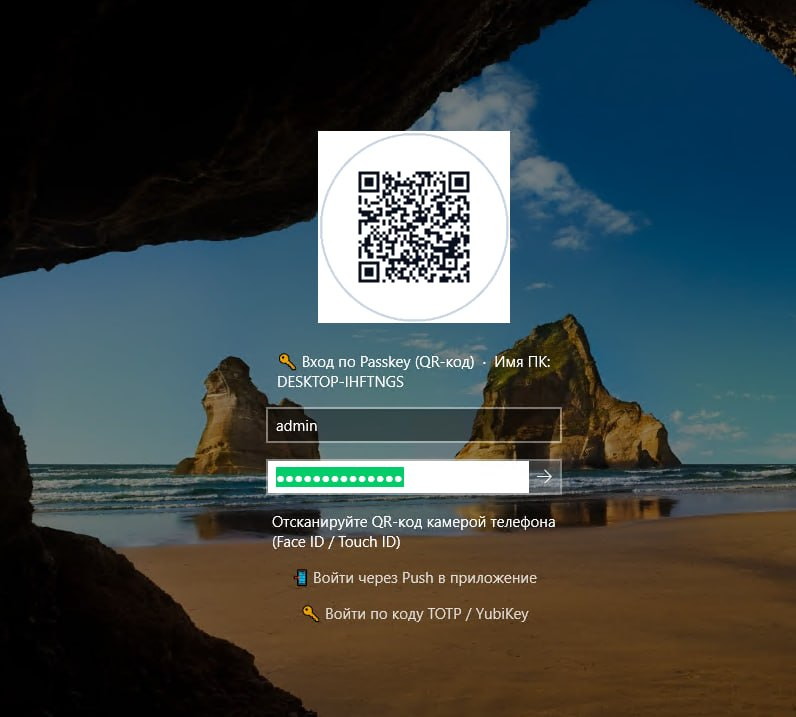
/radius incoming set accept=yesThe native Credential Provider integrates into Windows workstations and servers to secure console and RDP logons with instant Auto-Logon.
Workstation Logon Interface
Active Directory Group Policy (GPO) Setup:
1. Copy Ligament2FA.admx into \\domain\SYSVOL\domain\Policies\PolicyDefinitions\.
2. Copy Ligament2FA.adml into PolicyDefinitions\en-US\.
3. In gpmc.msc, enable Server URL (https://auth.company.corp:8080), Auto-Logon (Enabled), and Number Matching (Enabled).
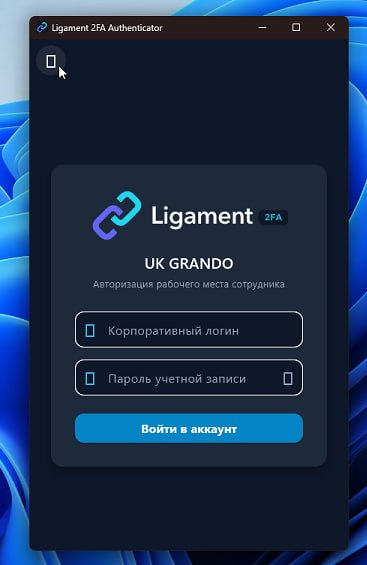
For employees running Windows or Linux distributions, the graphical Ligament Authenticator app provides seamless pairing, notifications, and telemetry.
The lightweight Relay node addresses two critical branch office requirements:
- Secure RDP & SSH Forwarding: Opens an outbound WSS (:443) tunnel to Core, granting secure remote admin access to internal hosts without a public IP or exposed ports.
- Cached Backup RADIUS for Wi-Fi: During WAN outages, operates as an autonomous local RADIUS server (802.1X WPA2/WPA3 Enterprise) using cached credentials.
• Healthcheck: curl -I http://localhost:8080/healthz (returns HTTP 200 OK).
• Live Audit Log: Streamed in real-time under /admin/audit.
• Database Backup:
docker compose exec -T db pg_dump -U twofa twofa | gzip > "ligament_backup_$(date +%F_%H%M).sql.gz"